Agent Test Case Format
User can generate test cases in Agent Test Case Format directly from the chat.
To generate a test case, user needs to:
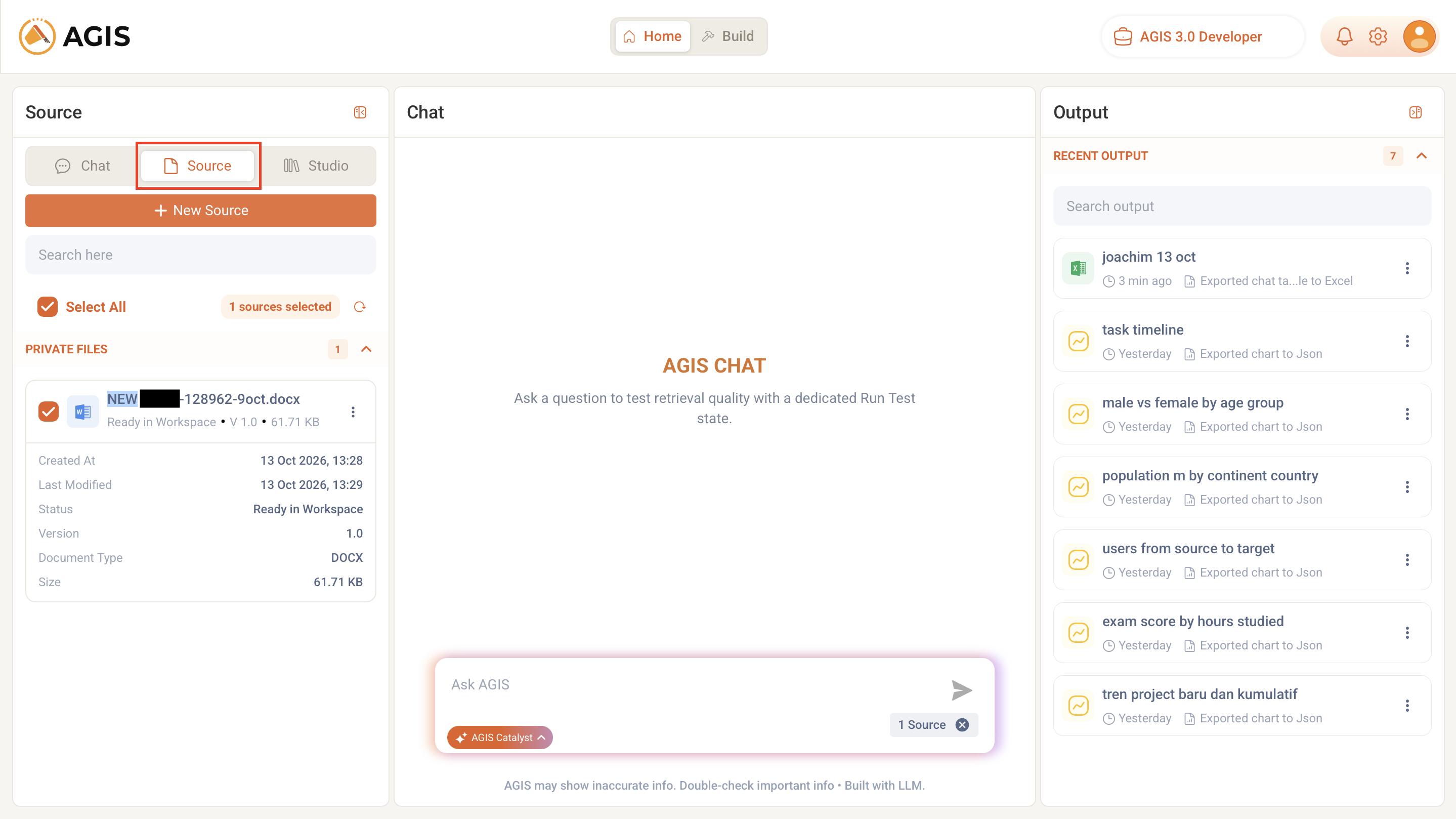
- Select or create a new source document. For more info on creating a new source document, see Create a New Source below.
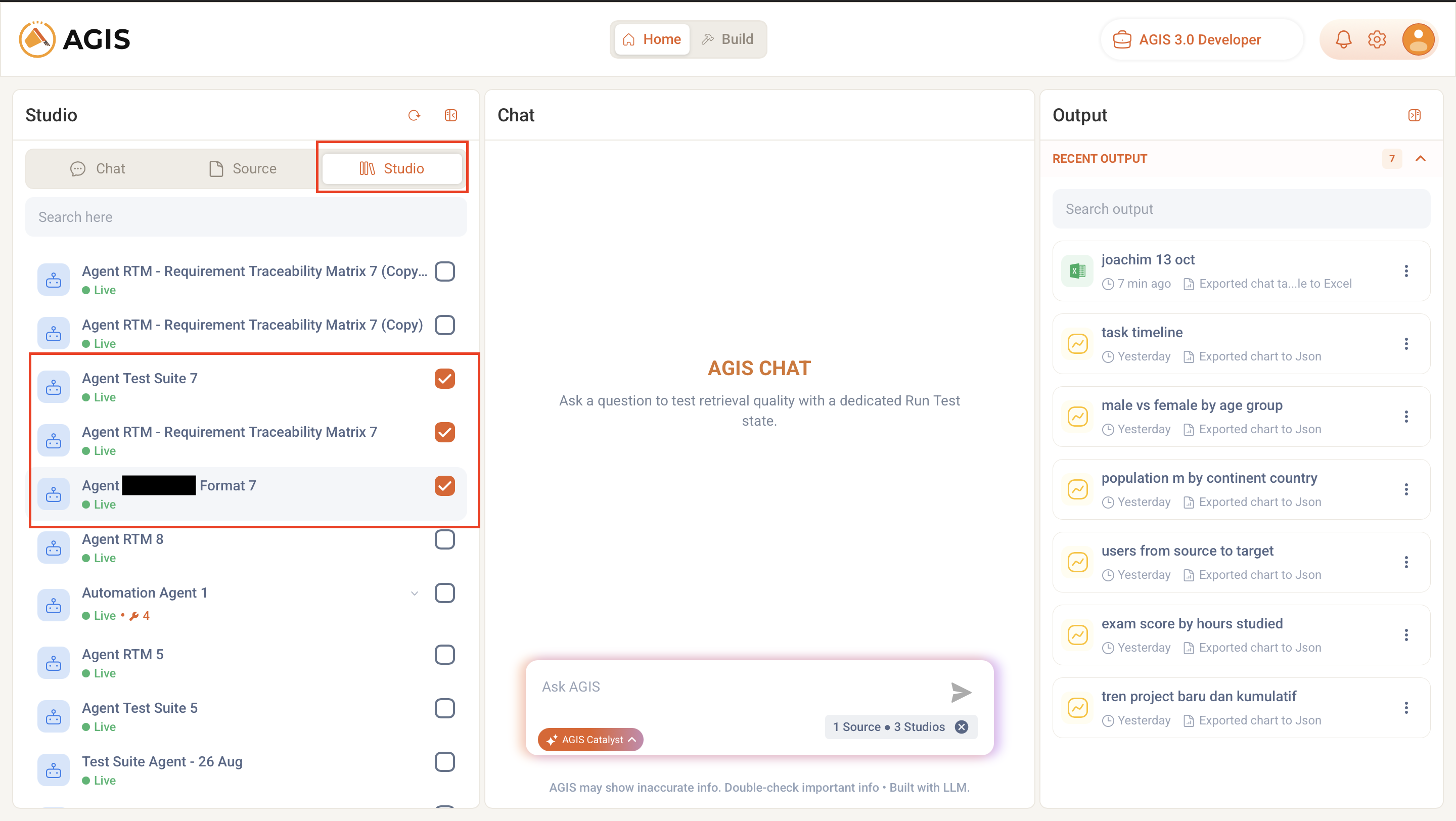
- Select related studio agents (for
Agent Test Case Formatspecifically, user needsAgent Test Suite,Agent RTM - Requirement Traceability Matrix, andAgent Test Case Format.)
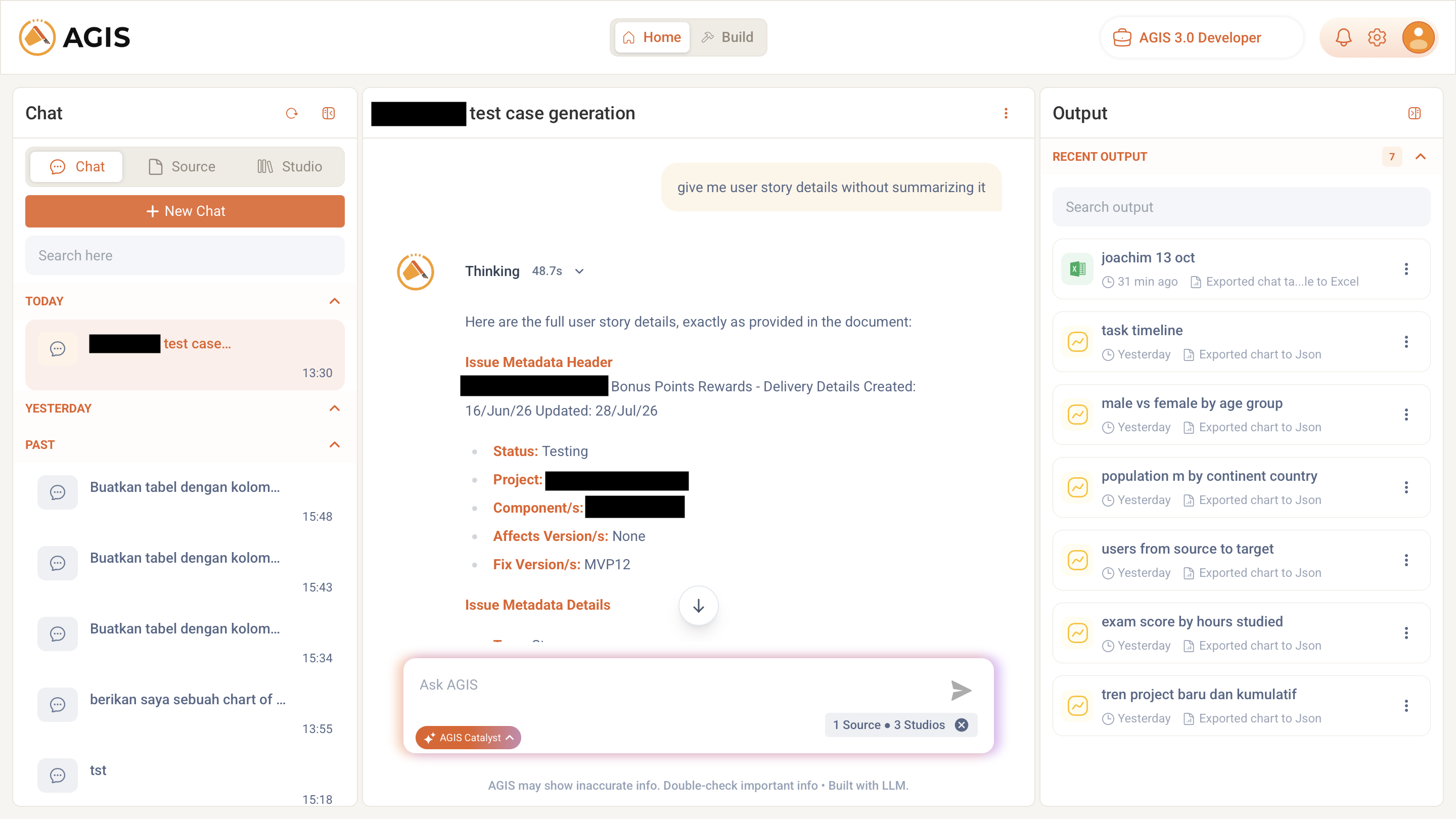
- Create a new chat by going to the the
Chattab and clicking theNew Chatbutton.
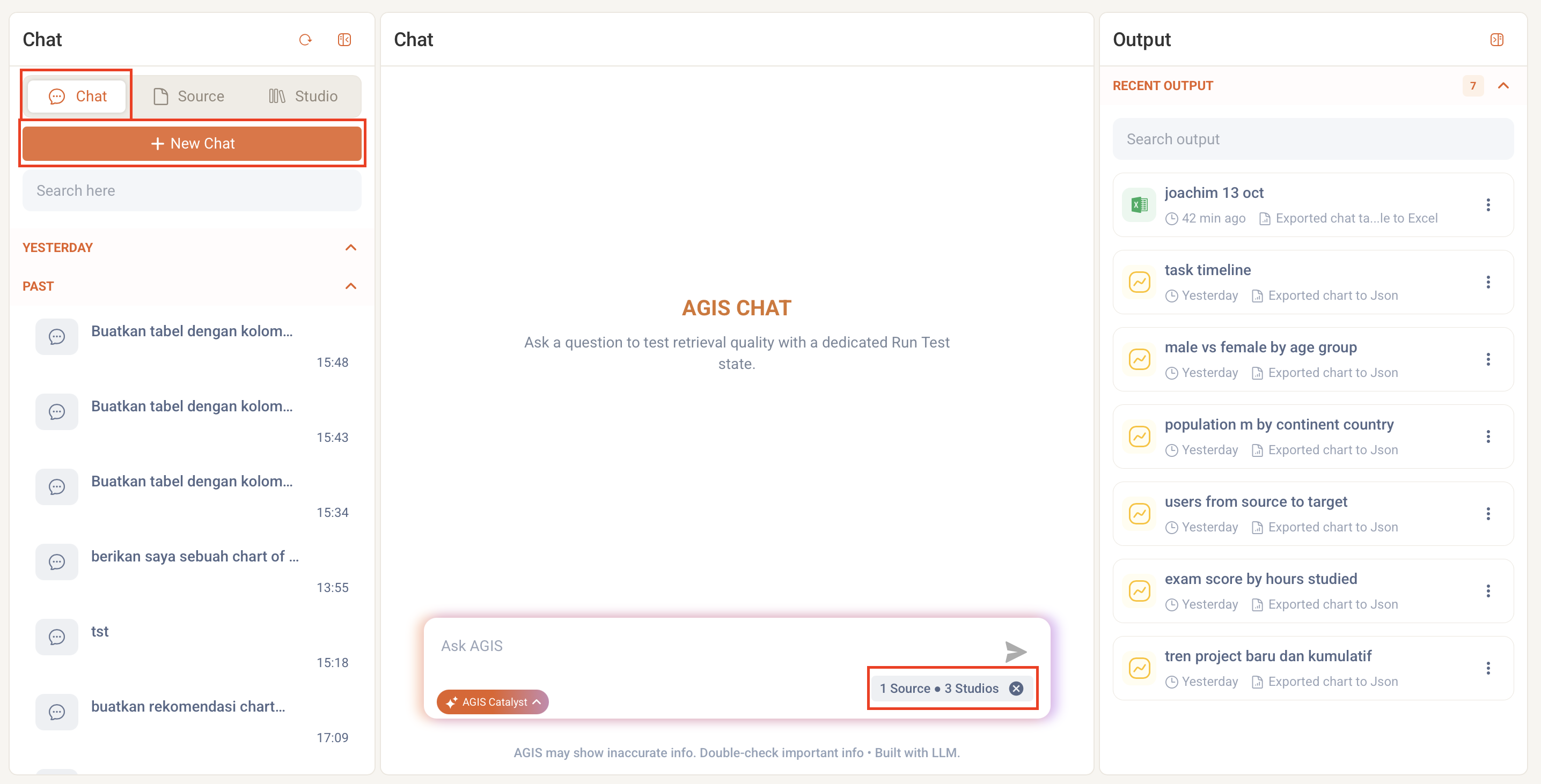
User can view how many source and studio agents/tools they have picked below the Send Chat button.
- For full step-by-step test case generation, see Step-by-Step Test Case Generation Chat Prompts below.
Create a New Source
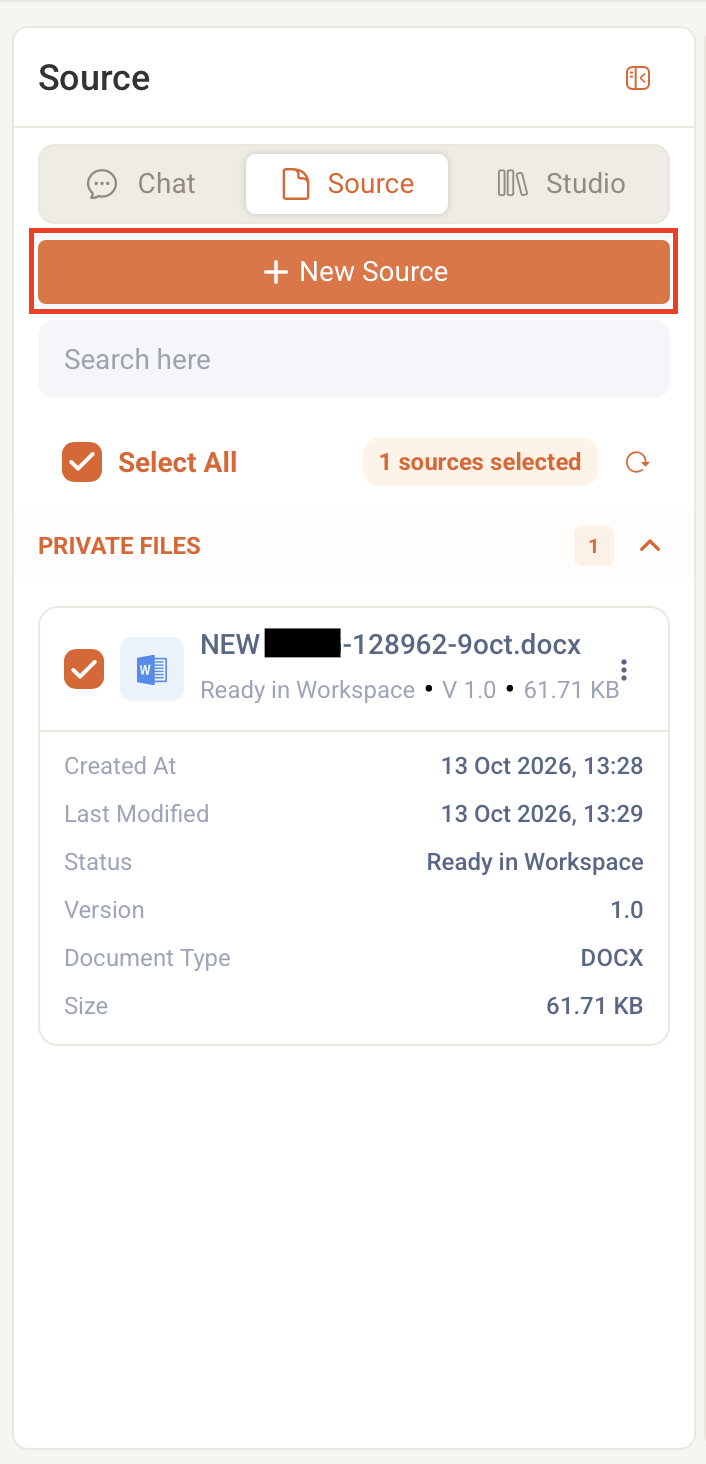
User can create a new source document by clicking the New Source button on Source tab.
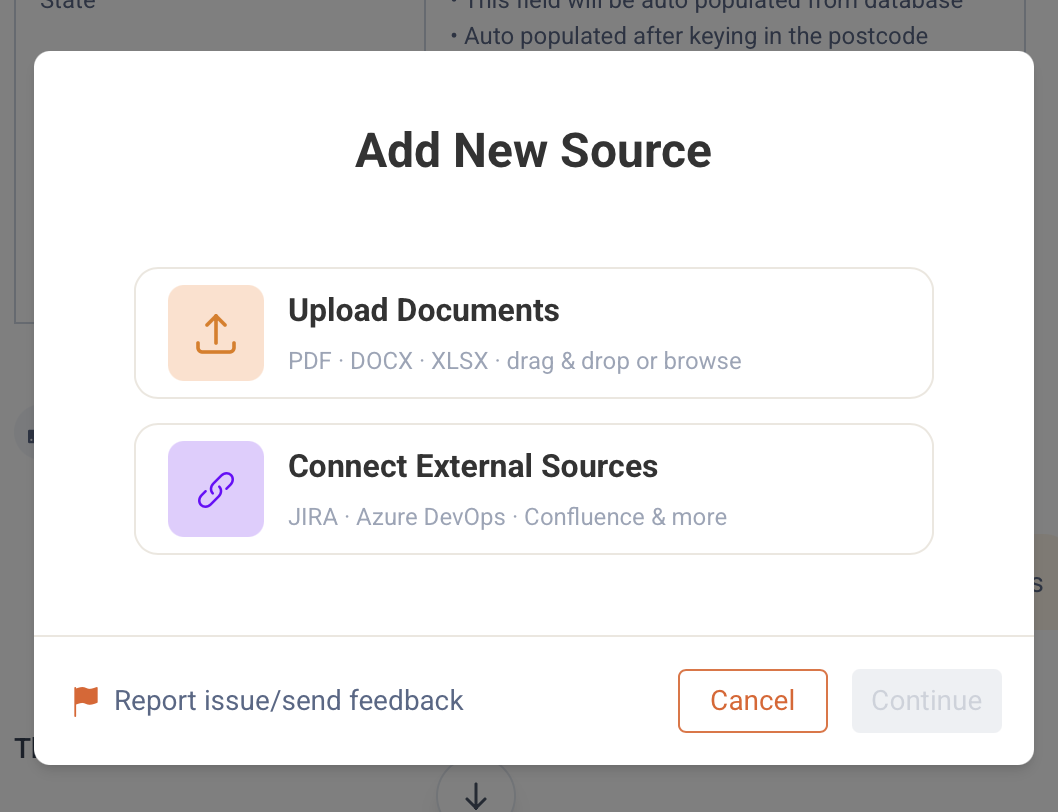
It will then shows a menu, user can choose between connecting to external sources or upload documents.
When clicking the Upload Documents button, user can drag and drop or browse their files for the document.
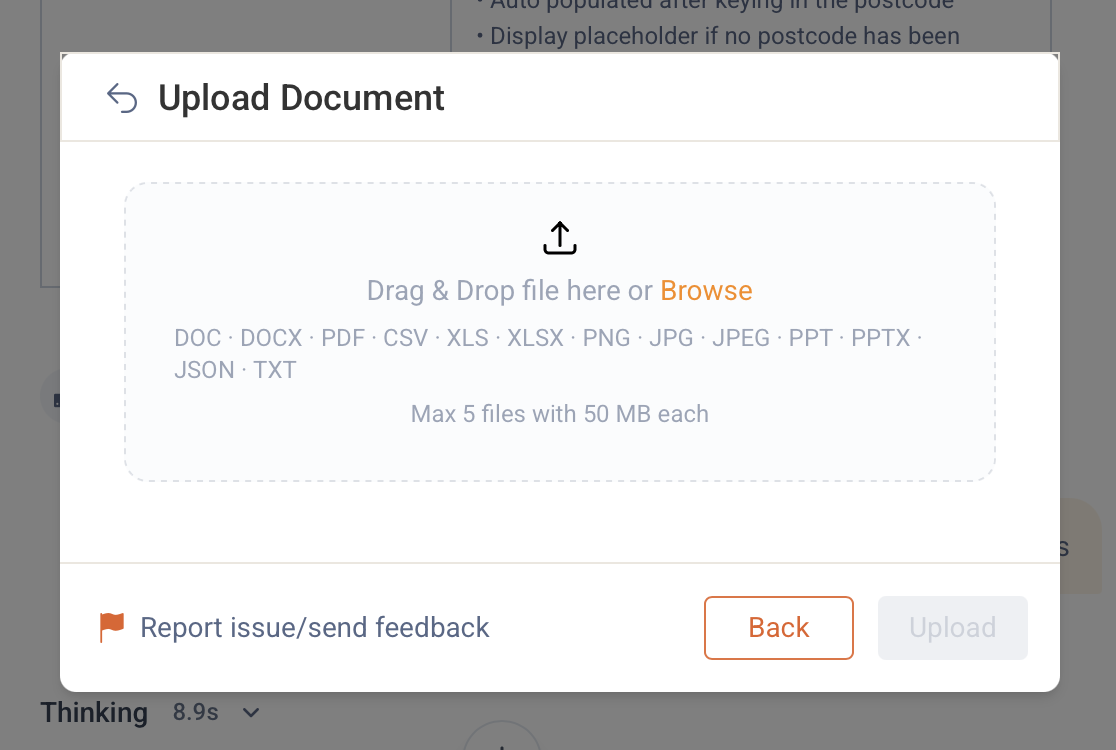
If there is a file picked, the Upload button becomes clickable and user can click it to upload the document on to Source.
Step-by-Step Test Case Generation Chat Prompts
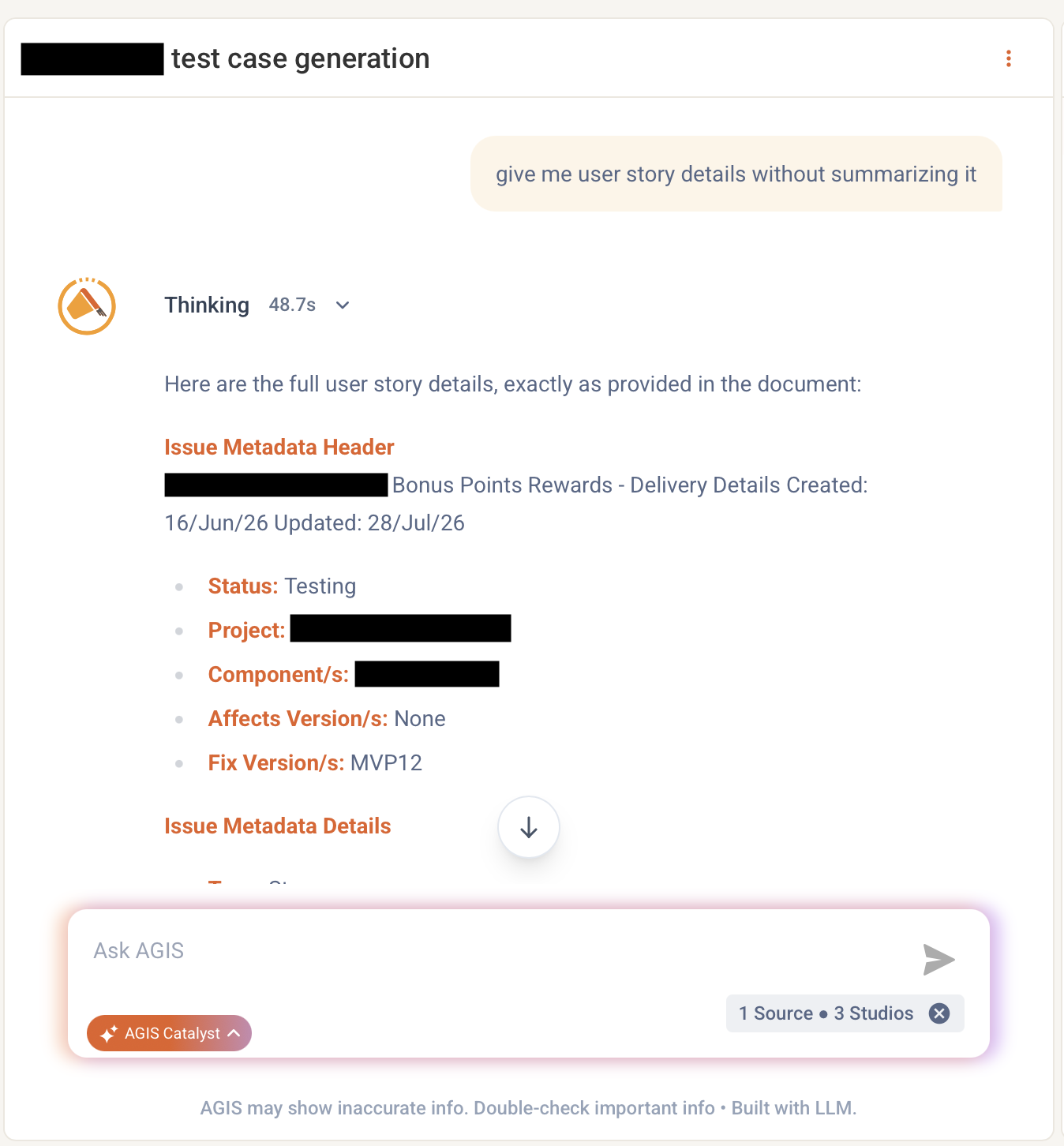
After Source and Agents are picked, user can start chat, below are the step-by-step example of Agent Test Case Format test case generation prompts:
- "Give me user story details without summarizing it."
- "Generate Test Case"
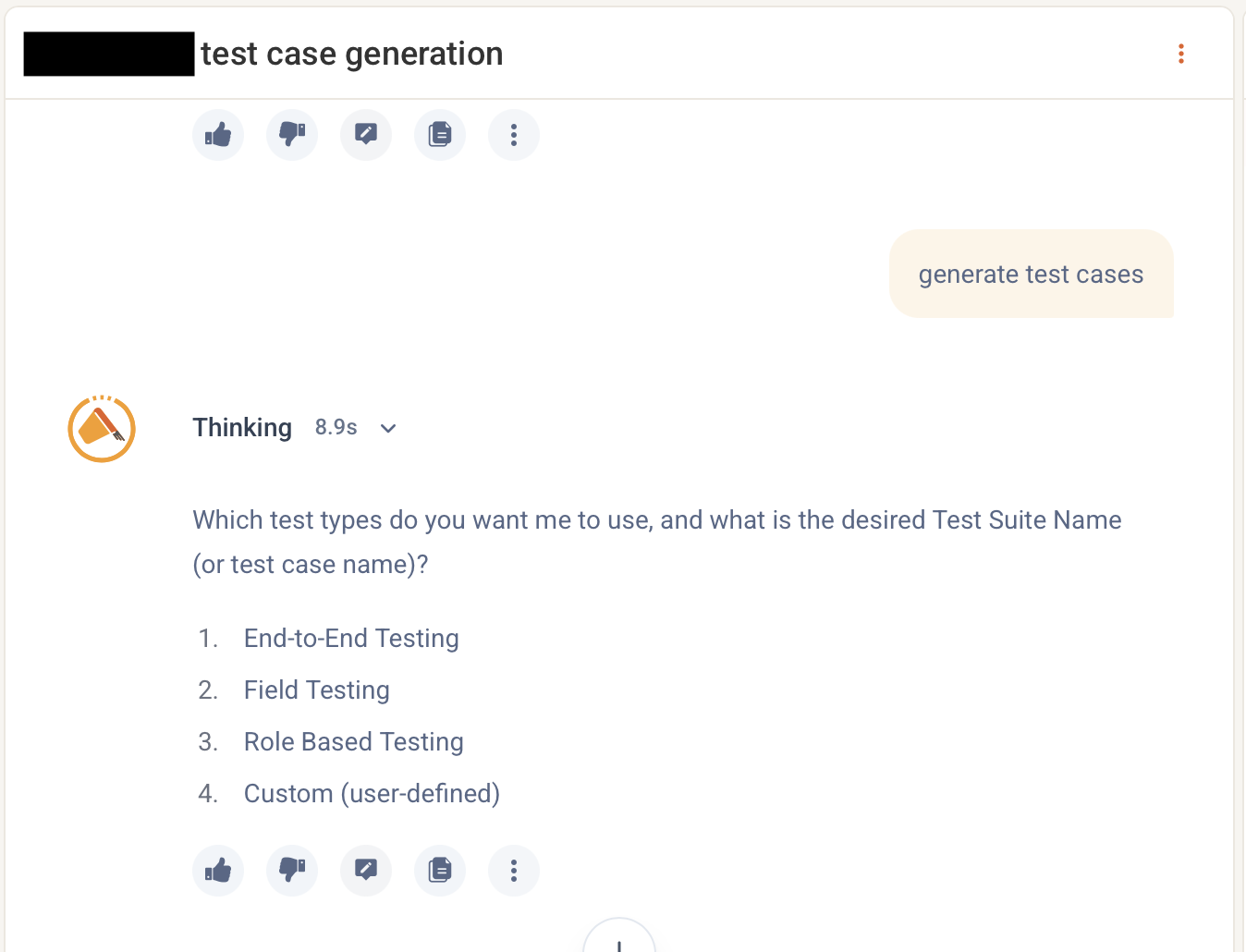
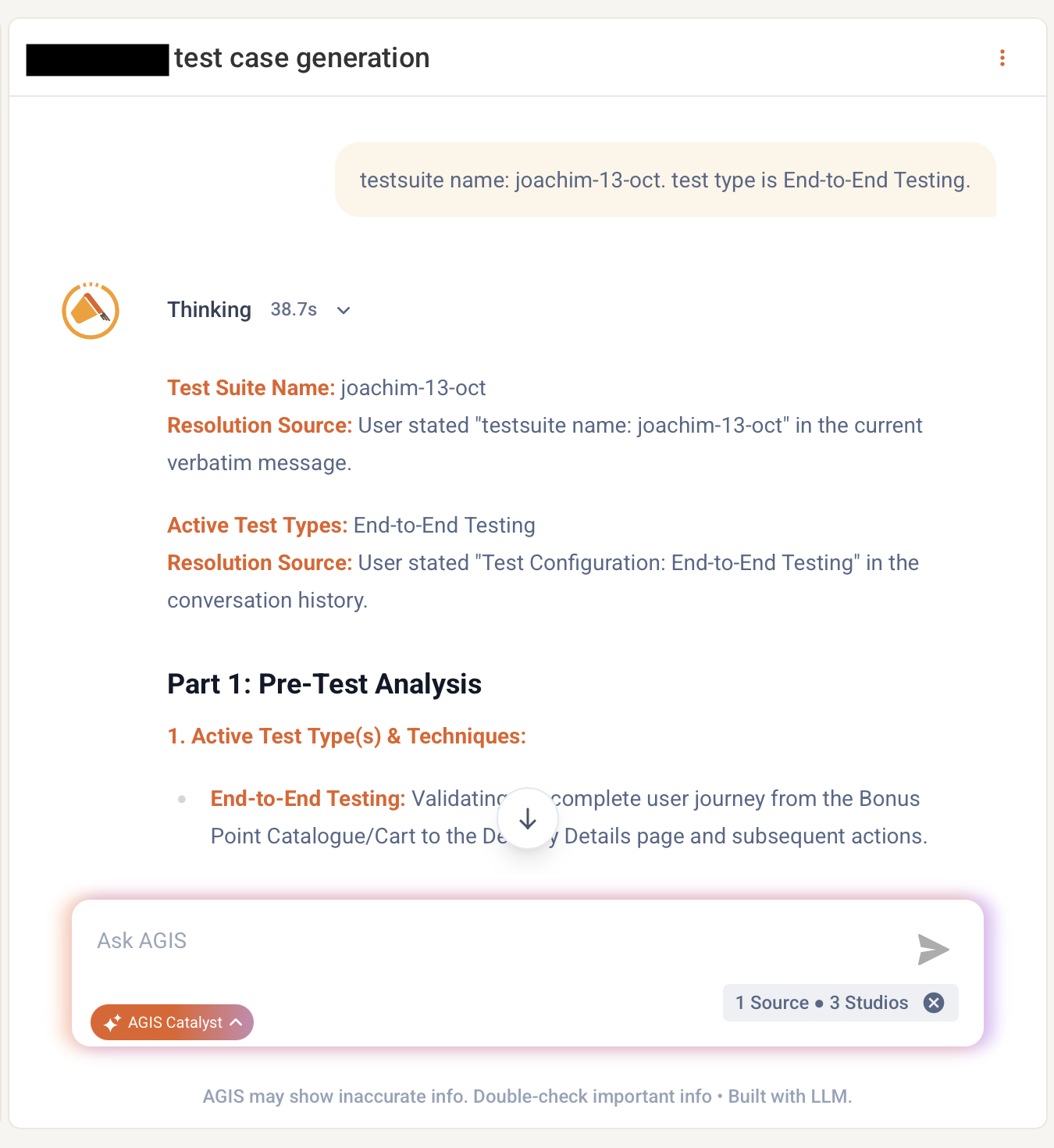
- "testsuite name:
[Insert Test Suite Name Here]. test type is End-to-End Testing."
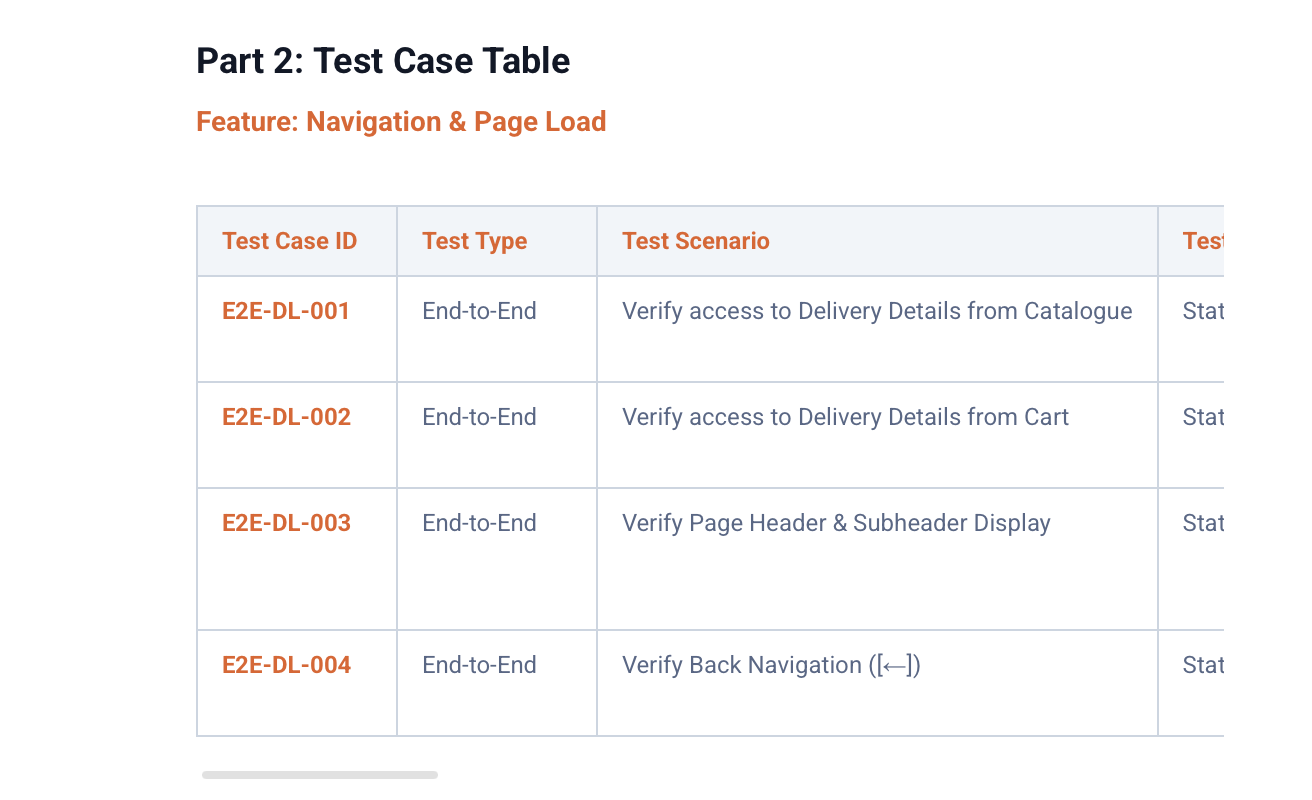
- "Generate RTM based on the previous response"
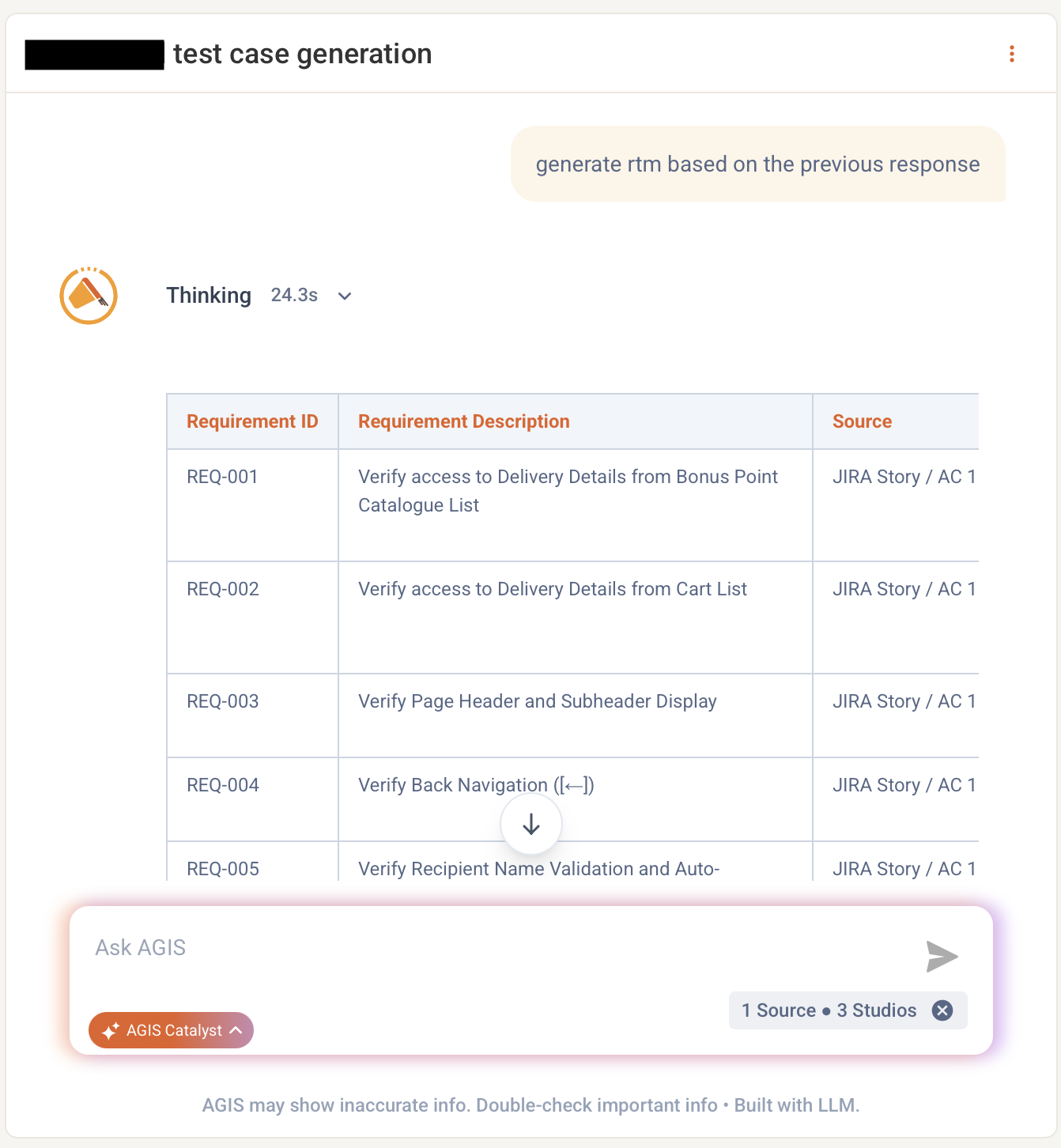
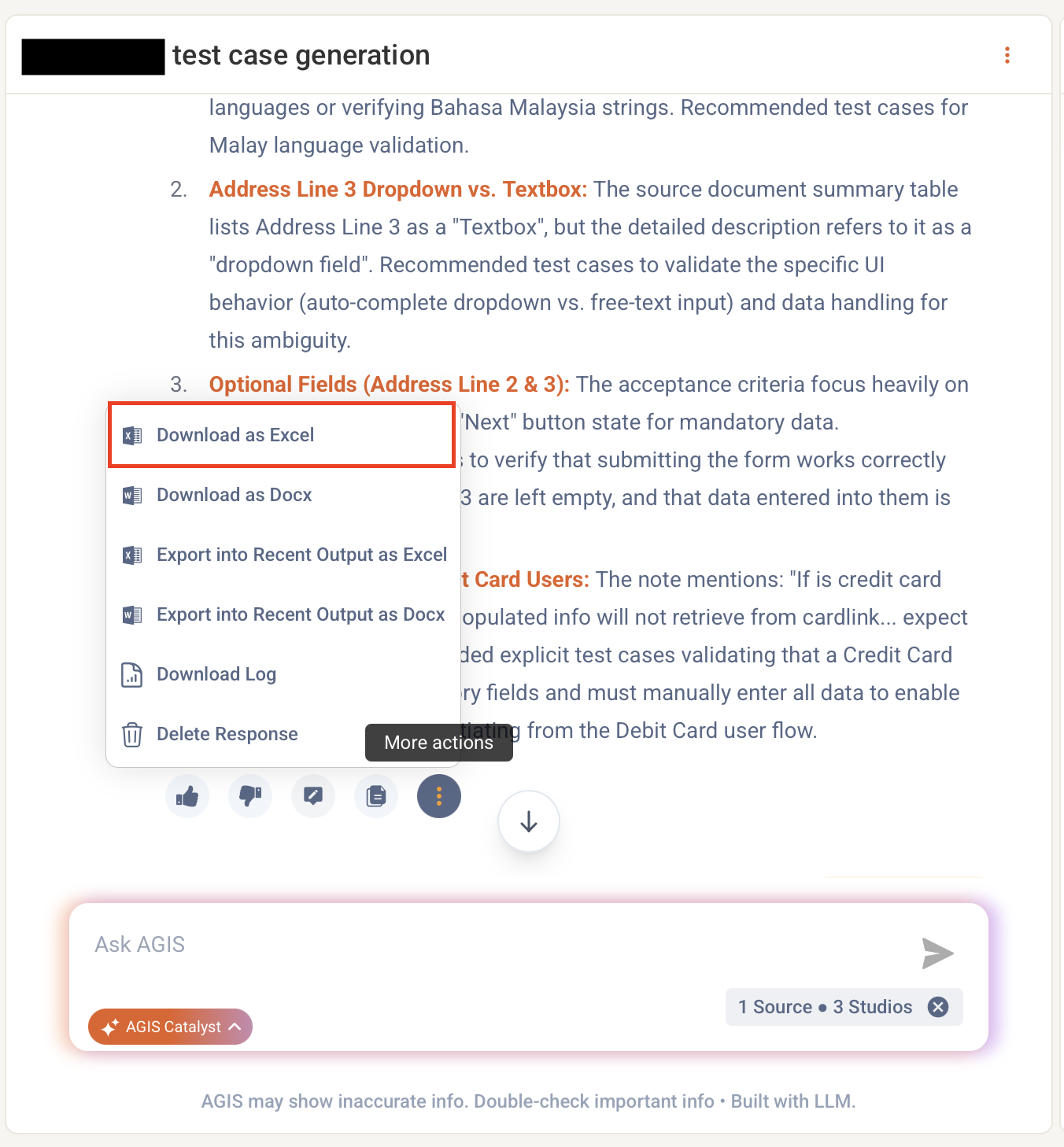
- user can then export or download by clicking the
three dotsicon on the bottom of the response.
Exporting to Recent Output / Download as Excel
By Clicking the Three Dots icon and choosing Export into Recent Output as Excel, user can export the table on to Recent Output on the right panel.
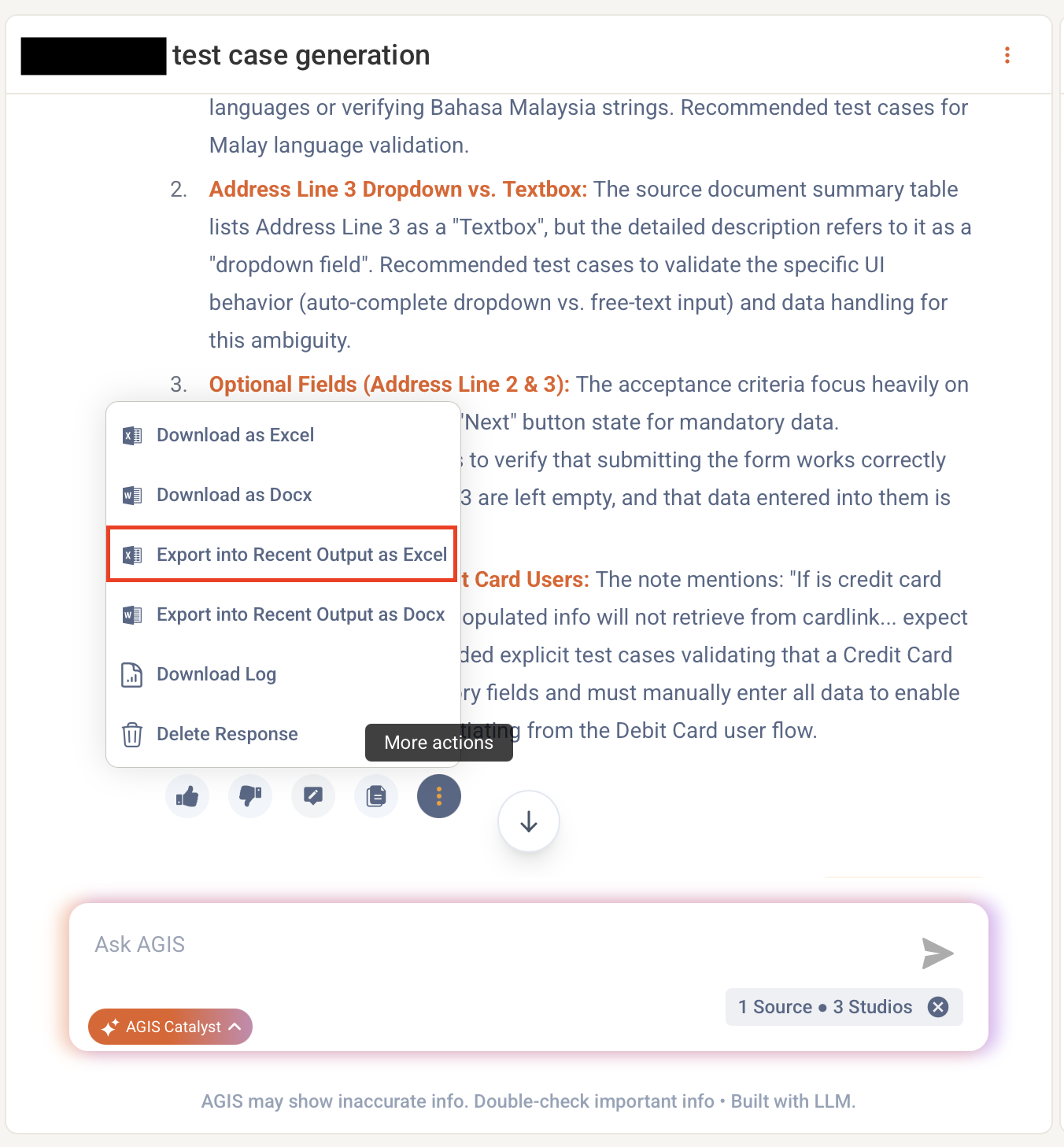
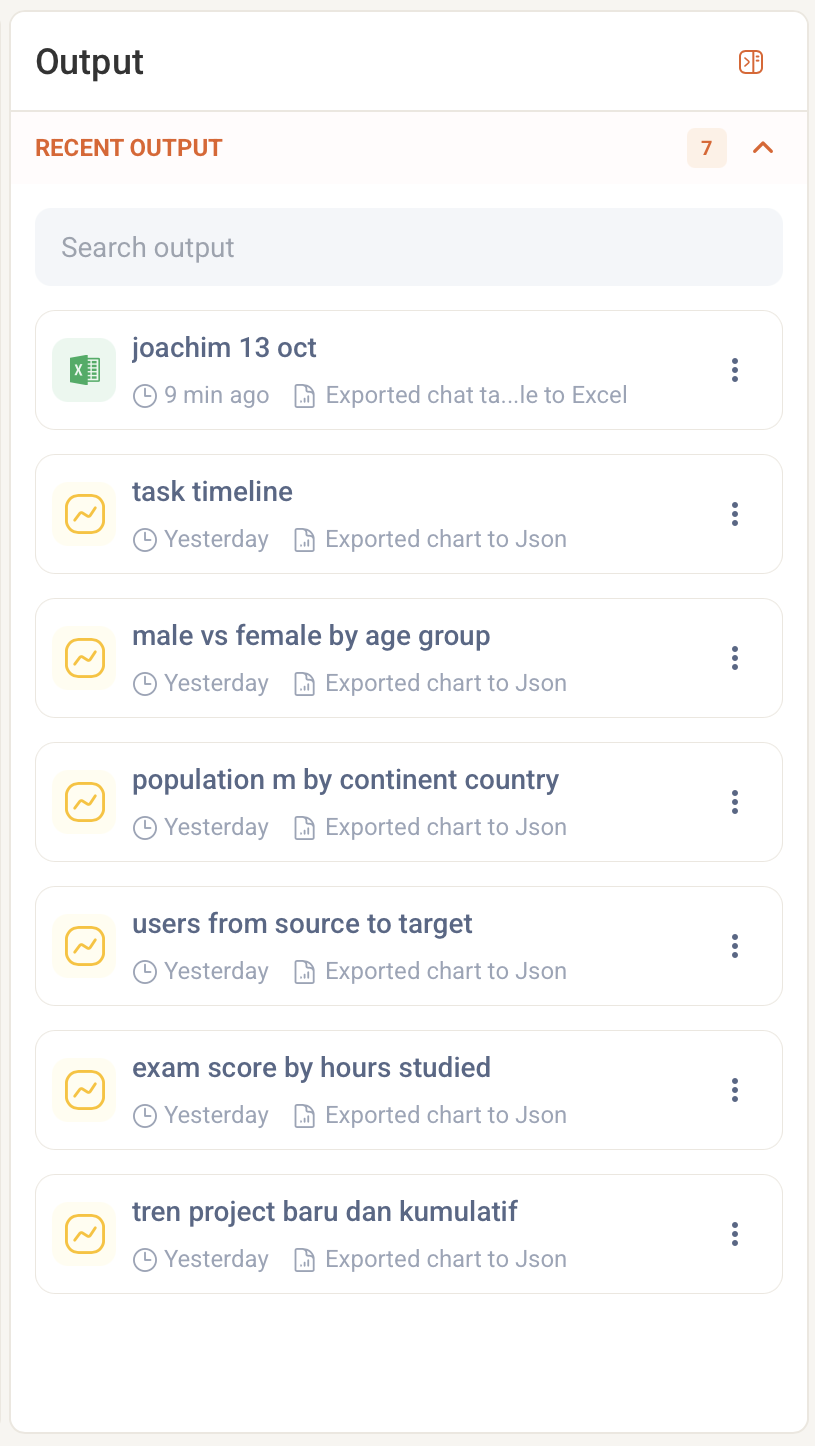
User can also download the table as excel file directly by instead clicking the Download as Excel button on the Three Dots menu.